Laptop vs desktop: how to choose the right setup for you
Laptop vs desktop is a question about your whole setup: the computer, the desk it sits at and the places where you work. The advice here covers Windows and Linux computers.
For many people, a good laptop plus a properly equipped desk is the strongest default. You get one working environment, mobility when you need it and a full-size screen and keyboard at home. Everyday work such as writing, research, calls and browsing seldom needs a desktop processor or a dedicated graphics card.
A desktop earns its place when the work stays at one desk and needs sustained power, more memory or storage, room to expand or extra reliability. Think of long video or 3D renders, large development projects, local AI and demanding games. Owning both makes sense when each machine has its own job.
Here is how to test each choice against your own week, whether you are considering a laptop or a desktop.
What you are comparing: eight kinds of computer
'Desktop' and 'laptop' each cover machines with different strengths. Eight kinds are worth telling apart:
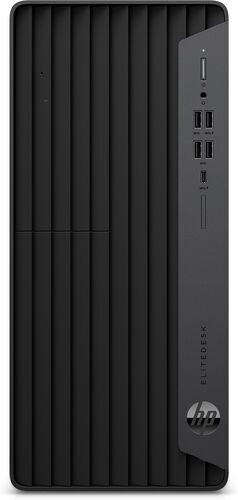
- Conventional tower: sustained performance, replaceable parts and internal expansion. It needs space and separate peripherals.
- Small tower or small-form-factor PC: desktop flexibility in less space, with tighter cooling and power limits.
- Business micro PC or mini PC: a compact permanent desk computer, often built on a mobile processor, with expansion that varies widely.
- All-in-one: a tidy installation, though the screen and the computer have to be replaced together.
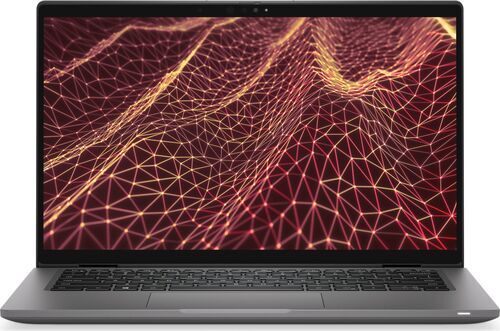
- Thin-and-light laptop: everyday mobility with your whole working environment on one machine, but little room to expand and less sustained cooling.
- Mainstream 15 to 16-inch laptop: more built-in screen space and sometimes better value, with more to carry.
- Gaming or mobile-workstation laptop: serious computing in several places, at the cost of a bulky charger, noise, heat and a higher price.
- Repairable or modular laptop: replaceable wear parts and a longer service life, though part supply and upgrade costs still matter.
A small desktop is not automatically as capable as a tower, and a large laptop is not automatically fast. Recent chips improved integrated graphics and the efficiency of several laptop families, but the physical limits remain: a laptop fits its battery, screen and cooling into a portable body. An 'AI PC' label does not change those limits.
What mobility means: four different needs
'I need to move around' can mean four different things:
- Moving between rooms at home: any laptop covers it, and a desktop does not.
- Commuting between two equipped desks: each desk keeps its own screen, keyboard and charger, so even a large workstation laptop works well.
- Working on a train or in a café: a light laptop with good battery life and a charger you can carry. A large workstation laptop is a poor fit here.
- Giving a demonstration at a client site without a connection: a laptop that runs everything locally. A large workstation laptop can do this well.
Portability can raise the amount of work you get done even when it lowers benchmark speed: a computer that is in the meeting is more useful than a faster one in another room. The same availability can make it harder to stop working, while a stationary computer can mark where the working day begins and ends.
Battery life belongs to the whole laptop: processor family, screen, firmware, power mode, graphics behaviour and software all play a part. In 2026, preferring Arm processors over x86 ones for battery life alone is too crude a rule. Judge a laptop by its endurance in your own work, how reliably it sleeps and wakes, and how much its charger weighs in your bag.
Your workspace can matter more than a faster processor
Monitor placement, keyboard, mouse, chair, lighting, microphone and network quality can shape your day more than another processor tier. A laptop and a desktop can share the same excellent desk.
A bare laptop ties the height of the screen to the position of the keyboard, so eight hours on one feels different from eight hours at a proper desk. An external keyboard and mouse let you raise the screen, and an external monitor can make a docked laptop as comfortable as a desktop. A desktop with a badly placed screen is still uncomfortable. The monitor eye strain guide helps you choose a screen.
More screens help when work needs reference material, monitoring or side-by-side comparison, but they take space and keep distractions in view. Start from the working area you need, then pick one larger monitor, two screens or an ultrawide.
- The dock or port: USB-C names a connector, not what the port can do. Check data speed, display support, the charging power the laptop accepts and the dock delivers, and the cable. A charger that connects can still fall short under heavy load, and some powerful laptops need their own adapter at the desk. See docking stations.
- The network: Ethernet is often a more useful upgrade for a stationary workstation than a newer Wi-Fi standard.
What a desktop adds: steady speed on long jobs, more memory and storage, and replaceable parts
A desktop's lasting advantage is spare capacity: cooling that holds its speed through long jobs, room for more memory and storage, and parts you can replace. This advantage does not make every desktop faster than every laptop.
What counts is the time that blocks you. Cutting a nightly export from forty minutes to twenty changes little if you are asleep, while cutting a repeated preview from twenty seconds to five can change a whole working day. A desktop pays off where its advantage shortens the many tasks that make you wait.
In 2025, Puget Systems tested its Mobile 16 workstation laptop while plugged in. It trailed a comparable desktop by roughly 10 to 20% in photo applications, came close to high-end desktops in parts of DaVinci Resolve and fell well behind in GPU-heavy Unreal Engine tests. Puget sells such systems, so read the results as workload evidence, not a verdict.
Names can mislead too: NVIDIA specifies 24 GB of video memory for the RTX 5090 Laptop GPU and 32 GB for the desktop RTX 5090, and their power limits differ. Pick the task you want to speed up and look for results for that task. The desktop PC buying guide explains how the parts work.
Laptop or desktop? A starting point for each kind of user
A job title is only a first guess: a writer who manages huge research archives can demand more of a computer than an engineer who works mostly on remote tools. Use these as starting points.
- Office, writing, research and browser work: a laptop with an external screen and keyboard. Almost no travel, or a strong wish to swap parts, favours a desktop.
- Meetings, travel, study or frequent moves: an efficient laptop and a modest desk setup. Add a desktop only if heavy work stays in one place.
- Home professional at one desk: a laptop or compact desktop. Heavy computation, many peripherals or growing memory needs favour a tower.
- Programming: a laptop with enough RAM for ordinary builds. Large projects, many virtual machines or long builds favour a desktop, and work that runs on servers needs only a comfortable laptop.
- Photo and design: a quality laptop and a good monitor. Large batches, demanding effects or huge files can justify a desktop.
- Video and motion work: decide by footage, effects, memory and travel. Heavy compositing and long exports favour a desktop, and field editing can justify a powerful laptop.
- CAD, engineering and simulation: a desktop for stationary work, a capable laptop for work on site. Certified drivers and your exact software can outweigh generic performance rankings.
- Gaming at home: a desktop. Frequent moves can justify a gaming laptop, and casual play may need only a good integrated GPU.
- Local AI: a desktop or a carefully chosen high-memory system. Model size, software and memory decide whether a laptop is enough.
- Shared household: a desktop or all-in-one is easy to share, and a laptop is easier to put away. Separate user accounts matter on either.
Before you buy, find out what limits you: memory, storage or graphics
More memory helps when memory is the limit, and a graphics card helps software that can use it. Impressive numbers bought without a named limit often leave the real problem unsolved.
- RAM: a sensible start is 16 GB for an ordinary new computer, 24 to 32 GB for heavier multitasking and 32 to 64 GB or more for serious video and many virtual machines. Puget Systems' 2026 tests found meaningful penalties at 16 GB for content creation. Laptop memory is often soldered, so check the exact model.
- Storage: a competent SSD is the baseline, with 512 GB workable and 1 TB comfortable. Capacity and free space usually matter before top speed, and a second internal SSD is a desktop strength.
- Graphics: integrated graphics cover everyday work, video, many creative tasks and some games. A dedicated card pays off when a defined workload needs its power, memory or software support, such as demanding games, GPU rendering or local AI. Video memory can set a hard ceiling.
- Processor: a model tier says little. Compare the exact model, its sustained power and cooling, and your own application.
Some features and labels deserve less weight until a named task benefits from them: an 'AI PC' badge, PCIe 5.0 peak speeds, frame generation in games, Thunderbolt 5 and Wi-Fi 7. A Thunderbolt 4 or well-specified 40 Gb/s USB4 setup already serves many desks. For local AI, start with the AI laptop RAM and VRAM guide.
Software and support decide what the hardware can do
Check the software before you pick the chip.
- Windows on x86-64 (the long-established PC processor design): broad support for professional apps, peripherals and PC games. Check the exact application version, the drivers and any workplace requirement.
- Windows on Arm: a good fit for an efficient laptop when your apps run natively. Emulation does not remove the need for Arm drivers, so test your VPN, security software, plug-ins, anti-cheat tools and USB devices.
- Linux on well-supported hardware: strong for development and administration. A desktop lets you choose parts known to work, while a laptop depends on firmware and drivers for sleep, cameras, graphics switching and docks. A hardware certification covers one configuration, not related models.
Then check the support horizon. As of October 2026, regular support for Windows 10 22H2 ended on 14 October 2025, and consumer Extended Security Updates run through 12 October 2027 for eligible, enrolled devices: security coverage, not full support. Windows 11 needs a supported processor, TPM 2.0 and UEFI firmware with Secure Boot. Judge a used computer's supported future together with its speed: a fast machine with an unsuitable support path is a poor purchase.
'AI computer' mixes four things: a cloud assistant on remote servers, an operating-system feature on the NPU (neural processing unit), a creative app on the GPU, and a local language model limited by memory and its software. A cloud assistant generally needs no powerful NPU, and Copilot+ needs one rated 40 TOPS or more, 16 GB of memory and 256 GB of storage. Name the feature you want before you pay extra.
Five ways to set up your computers, and what each one requires of you
Two computers create coordination work: files, licences, software versions, settings, updates and recovery all have to agree. The second machine must earn that upkeep.
- One laptop, several desks: the laptop travels, and each desk supplies screen, keyboard, power and network. Losing the laptop loses everything, so keep an independent backup.
- Desktop for heavy work, laptop for mobile work: decide the split in advance, for example photo preparation on the laptop and large exports at the desk. Move active projects with the application's own transfer method, not improvised sync.
- Desktop as host, laptop as remote terminal: use SSH or remote development for code, Remote Desktop for many Windows tasks and streaming for graphics. The laptop still needs a good screen, input and network, and a fast speed test does not prove a responsive connection. Keep the host wired and avoid exposing a Remote Desktop port to the internet.
- Employer laptop plus personal desktop at one desk: share one monitor and keyboard through a KVM switch (it routes them to either computer) or a monitor with a built-in one. Hardware switching needs no software on a managed laptop, and sharing a keyboard does not mean mixing work and personal files.
- Laptop plus external graphics card: one environment with desk graphics, only for a combination documented to work. The enclosure and power supply can take a large share of a desktop's price, and the laptop's processor, memory limit and cooling stay as they were.
Give each important project one clear home. Sync can spread a mistake as efficiently as a good change, so keep a tested backup, and do not sync live databases or virtual machine images that you edit on both computers. One system administrator found that a desktop kept for local virtual machines became a second environment to maintain once server access arrived.
What a laptop or desktop costs to own over its lifetime
Compare complete systems. A laptop quote includes the screen, battery, keyboard and camera, while a desktop owner may already own better peripherals. A laptop at a desk can still need a monitor and a dock.
Add up the same items for every option: equipment, peripherals, software and services, energy, repairs or replacement and the cost of interruptions, minus what reselling or reusing brings back. Use the same number of years and the same needs, and do not count upgrade savings as certain.
An extra 20 W running around the clock adds 175.2 kWh a year, and the same 20 W for 8 hours on 250 working days adds 40 kWh. Multiply by your own tariff. A processor's rated power is not what the computer draws from the wall, and leaving a desktop awake all day can erase the benefit of finishing jobs sooner.
An upgrade path is worth something only if you will use it. A replaceable battery that restores a laptop's mobility is often worth more than a vague promise of future processor upgrades. Standard desktop parts usually give broader options, while proprietary desktops and compact mini PCs need their own check.
Refurbished means professionally tested, cleaned and reconditioned until it is hard to tell apart from new, and every refurbed purchase carries a minimum 12-month warranty and a 30-day return window. Keeping suitable equipment in service avoids a needless replacement, while owning two machines means making two. Without product data, neither 'laptops are greener' nor 'desktops last forever' is a safe claim. The laptop buying guide helps you narrow the choice.
How to decide, and how to test the choice before you keep it
Seven rules to keep:
- Laptop first: when mobility is real, your work runs locally and one environment is worth keeping.
- Desktop first: when the important work is stationary and needs sustained power, capacity, expansion or simple part replacement.
- Both: when each machine has its own job and the handoff is simple enough to maintain.
- A powerful laptop: when demanding work must travel and run locally. Judge it together with its charger and plugged-in needs.
- Remote access: when keeping the computing in one place helps and your network fits the task.
- An external graphics card: only for a combination documented to work, with its full cost counted.
- Keep your current computer: when a monitor, more memory or storage, a new battery, a software change or a better routine fixes the real problem.
Before you shop, record one ordinary week. Note where you needed a full computer and what felt slow, noisy or awkward. List what already works, the software and devices you cannot do without, and the limit you want to fix.
Then test the choice in your own setup during the return window, with your own apps, projects, peripherals and desk rather than benchmarks alone. Repeat the tasks that make you wait. On a laptop, work a full session on battery, calls included. With a dock, check that screens, Ethernet, audio, camera and charging come back consistently after you reconnect. Read real text in your own room. And restore a sample file from your backup, with your encryption recovery key and account access kept apart from the computer.
The most revealing question comes last: which useful capability will this purchase add to an ordinary week, and how often will you use it?
Frequently asked questions about laptops and desktops
Is a laptop or a desktop better for working from home? A laptop with an external screen and keyboard suits many home offices and gives you one environment to carry. A desktop wins when you work at one desk with sustained computation, many peripherals or growing memory needs.
Is a desktop faster than a laptop? Often for long, heavy jobs, but not for every task. A desktop sustains more power and cooling and takes more memory, so it holds its speed in renders and long exports. For short interactive tasks, a good laptop can feel as quick.
Can a laptop replace a desktop? Yes, for most office work. With a monitor, keyboard and dock, a laptop becomes a full desk computer, so check that the dock supports your screens and charges the laptop under load. Long renders, large projects, local AI and demanding games still favour a desktop.
Is a desktop cheaper than a laptop? Not by default. A laptop price includes the screen, battery, keyboard and camera, while a desktop owner may already have better peripherals. Compare complete setups over the same years, and count energy, repairs and licences too.
Does a desktop last longer than a laptop? Not automatically. A desktop with standard parts offers more ways to replace what ages, and a laptop with a replaceable battery can gain years from one part. Proprietary desktops and compact mini PCs can limit upgrades, so ask what can be replaced and at what cost.
How much RAM do I need? 16 GB is a sensible start for a new computer used for general work. 24 to 32 GB suits heavier multitasking, and 32 to 64 GB or more suits serious video and virtual machines. 8 GB can do for light use, but laptop memory is often soldered, so choose before you buy.
Do I need a dedicated graphics card? Only for a defined workload. Integrated graphics cover everyday work, video, many creative tasks and some games. Demanding games, GPU rendering and many local AI tools can justify a dedicated card, and its video memory can set a hard ceiling.
Is a gaming laptop as good as a gaming desktop? For gaming at home, a desktop is the stronger default, and a gaming laptop makes sense if you move often. Compare the exact graphics chip, because names mislead: NVIDIA lists 24 GB for the RTX 5090 Laptop GPU and 32 GB for the desktop card.
Should I own both a laptop and a desktop? Only if each has a job you can name, such as a desktop for heavy work at your desk and a light laptop for meetings and travel. Two computers mean two sets of files, licences, updates and recovery to keep in step.
Is a mini PC a good alternative? Yes, for a permanent desk with modest demands. Many mini PCs use mobile processors, and graphics and memory expansion varies. Small does not mean quiet: one 2026 test of a compact desktop found low idle power but audible operation and much more noise under load.
Do I need an AI PC? No, unless a named feature you use runs locally on it. A cloud assistant works on any computer. Copilot+ features need a neural processing unit (NPU) rated 40 TOPS or more, 16 GB of memory and 256 GB of storage, and a large local model depends mostly on memory.
Should I keep my current computer? Yes, if it still gets security updates and the real problem has a smaller fix: a monitor, more memory or storage, a new battery, a software change or a better routine. Replace it when the computer itself is the limit you can name.
Find the laptop or desktop that suits how you work
Start with what your week needs, then choose the computer and the desk to match. Every refurbed purchase carries a minimum 12-month warranty and a 30-day return window, so you can test the whole setup at home.
If a desktop suits you better, browse refurbished desktops.

Sign up for our newsletter for the first time and save 15€!
Never miss an offer again.
Information about the use of personal data can be found in our Privacy policy.
Get the refurbed app
For iOS and Android


Confirm sign-up
Click the link in our confirmation e-mail to receive your voucher. It will be applicable to purchases from 200€.
- © Refurbed Marketplace GmbH
- Accessibility
- T&C
- Privacy Policy
- Imprint
- Legal Notices
- European Data Act
- Cookie Policy